Hi there,
I have been working on a project to move/migrate lots of jobs to a new server in another domain and we had to update quite a bit of jobs to set the owner to 'sa' prior to migration. Out of close to 600 jobs, there were about 200 jobs owned by not 'sa' but an account in Active Directory. So instead of touch all of those jobs manually and change the owner I come up with the following script and all done in less than 10 minutes including time took come up with the script. I decided to share it here and also use my blog to document it if I ever need it.
HTH,
Bulent
USE MSDB;
GO
SET NOCOUNT ON;
/********************************
This script is used to update the job owner to sa for
the jobs that is not already owned by sa.
********************************/
DECLARE
@MinRowId INT = 1
, @MaxRowId INT
, @jobId UNIQUEIDENTIFIER
, @owner_login_name NVARCHAR(128) = N'sa';
-- Store the job steps in a temp table to update the in the loop later
IF OBJECT_ID('tempdb..#Jobs') IS NOT NULL
DROP TABLE #Jobs;
CREATE TABLE #Jobs (
RowId INT IDENTITY (1,1) NOT NULL
, job_id UNIQUEIDENTIFIER NOT NULL
, jobname SYSNAME NOT NULL
, owner_sid VARBINARY(85)
);
-- Insert list of jobs not owned by 'sa'
-- Can change the select statement and
-- where clause to your need
INSERT INTO #Jobs (job_id, jobname, owner_sid )
SELECT j.job_id, j.name, j.owner_sid
FROM dbo.sysjobs AS j
WHERE J.owner_sid <> 0x01 -- sid for SA
ORDER BY j.name
SET @MaxRowId = @@ROWCOUNT;
WHILE @MinRowId <= @MaxRowId
BEGIN
SELECT @jobId = job_id
FROM #Jobs
WHERE RowId = @MinRowId;
EXEC sp_update_job @job_id = @jobId, @owner_login_name = @owner_login_name;
SET @MinRowId = @MinRowId + 1;
END
--Return list of jobs and original owner sid
SELECT * FROM #Jobs;
DROP TABLE #Jobs;
Thursday, January 3, 2019

Monday, November 26, 2018
Find Actively Running SQL Server Agent Jobs
Hi there,
An ETL developer asked my help recently with a SQL Server Agent job needed to start running if the main job finished running. Occasionally main job run longer than expected and interfered with the secondary job which should run after the main job. In the first step of secondary job we added a step to continue if the following query returned no rows if it returns a row then we set the job to retry again in 10 minutes for 3 times which solved our issue.
HTH,
Bulent
USE msdb;
GO
SELECT
j.name AS job_name,
ja.start_execution_date,
ISNULL(last_executed_step_id,0)+1 AS current_executed_step_id,
Js.step_name
FROM dbo.sysjobactivity AS ja
LEFT OUTER JOIN dbo.sysjobhistory AS jh ON ja.job_history_id = jh.instance_id
INNER JOIN dbo.sysjobs AS j ON ja.job_id = j.job_id
INNER JOIN dbo.sysjobsteps AS js ON ja.job_id = js.job_id AND ISNULL(ja.last_executed_step_id,0)+1 = js.step_id
WHERE ja.session_id = (SELECT TOP 1 session_id FROM msdb.dbo.syssessions ORDER BY agent_start_date DESC)
AND ja.start_execution_date is not null
AND ja.stop_execution_date is null
--AND j.name = 'NameOfTheJob' -- Uncomment and supply the name of the job you need to find out if it's actively running
GO
An ETL developer asked my help recently with a SQL Server Agent job needed to start running if the main job finished running. Occasionally main job run longer than expected and interfered with the secondary job which should run after the main job. In the first step of secondary job we added a step to continue if the following query returned no rows if it returns a row then we set the job to retry again in 10 minutes for 3 times which solved our issue.
HTH,
Bulent
USE msdb;
GO
SELECT
j.name AS job_name,
ja.start_execution_date,
ISNULL(last_executed_step_id,0)+1 AS current_executed_step_id,
Js.step_name
FROM dbo.sysjobactivity AS ja
LEFT OUTER JOIN dbo.sysjobhistory AS jh ON ja.job_history_id = jh.instance_id
INNER JOIN dbo.sysjobs AS j ON ja.job_id = j.job_id
INNER JOIN dbo.sysjobsteps AS js ON ja.job_id = js.job_id AND ISNULL(ja.last_executed_step_id,0)+1 = js.step_id
WHERE ja.session_id = (SELECT TOP 1 session_id FROM msdb.dbo.syssessions ORDER BY agent_start_date DESC)
AND ja.start_execution_date is not null
AND ja.stop_execution_date is null
--AND j.name = 'NameOfTheJob' -- Uncomment and supply the name of the job you need to find out if it's actively running
GO
Monday, October 31, 2016
Error 'The network address is invalid' Intalling Clustered SQL Server on VirtualBox VMs
Hi there,
While I was trying to set up a lab for testing out SQL Server 2016 on clustered two node Windows Server Failover cluster running Windows Server 2012 R2, I kept getting the error in the screen shot below. I had no problem setting up the AD Domain controller, and two windows server nodes which will take part in the cluster. DNS worked just fine, long story short there was no issue at all. I tried two options where one was granting additional permissions to windows cluster network object (CNO) which did not work, and other one was to pre-stage the SQL Cluster prior to installation which did not work either.

Further search came up with the solution from Jonathan Kehayias's blog dated September 19, 2011. The simple solution was to remove 'Oracle VM VirtualBox Guest Additions'. I un-installed that software rebooted the servers and was able to install the SQL Server Cluster successfully. If you're not already following not only Jonathan's blog but everyone at SQLskills, I recommend to do so since you will benefit from their contribution immensely.
HTH,
Bulent
While I was trying to set up a lab for testing out SQL Server 2016 on clustered two node Windows Server Failover cluster running Windows Server 2012 R2, I kept getting the error in the screen shot below. I had no problem setting up the AD Domain controller, and two windows server nodes which will take part in the cluster. DNS worked just fine, long story short there was no issue at all. I tried two options where one was granting additional permissions to windows cluster network object (CNO) which did not work, and other one was to pre-stage the SQL Cluster prior to installation which did not work either.

Further search came up with the solution from Jonathan Kehayias's blog dated September 19, 2011. The simple solution was to remove 'Oracle VM VirtualBox Guest Additions'. I un-installed that software rebooted the servers and was able to install the SQL Server Cluster successfully. If you're not already following not only Jonathan's blog but everyone at SQLskills, I recommend to do so since you will benefit from their contribution immensely.
HTH,
Bulent
Monday, September 26, 2016
Hyper-V Manager Error 'General access denied error'
Hello there,
Recently I started using Hyper-V to set up a lab in my workstation. I created many virtual machines in a domain environment to test traditional Window Server Fail over Cluster with SQL Server 2016 and also other nodes for testing availability groups. Long story short I started running low on free space on my 256GB SSD so I ended up buying crucial MX300 750GB SSD for replacement. After copying the contents from the existing 256GB SSD into 750GB SSD I started checking everything out to make sure that copy process worked as expected. When I attempted to start the virtual machines in the Hyper-V Manager I kept getting errors for all the virtual machines and it basically said that the access denied. The screenshot of the error message captured below.

I thought somehow the file system permissions did not transfer properly and tried granting my account full access to the D: drive where I store the virtual machine files. To my suprise it did not change anything and the same error message appeared again. Then I turned to my favorite search engine and looked for a solution. Which was very easy to implement and I wanted to share it and keep a record of it in my blog in case I run into it again in the future.
The solution was to simple opening a Command Prompt (Admin) and gather couple of information for the command to execute and grant the necessary privileges to the virtual machine file. The command is;
icacls "path to vhd or vhdx file" /grant "NT VIRTUAL MACHINE\Virtual Machine ID":F
I knew the virtual machine file name and full path to it but I needed to find the virtual machine SID. To get the SID you need just click on 'See details' link on the error message window and it will expand the error window like below.
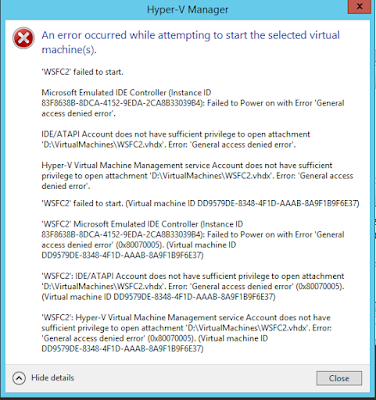
The last paragraph has the full path of my virtual machine file and the SID I needed for the command. So I just opened the Command Prompt (Admin) and I typed the command as seen below and then I was able to start the virtual machine and connect to it.

Happy virtualizations.
HTH,
Bulent
Recently I started using Hyper-V to set up a lab in my workstation. I created many virtual machines in a domain environment to test traditional Window Server Fail over Cluster with SQL Server 2016 and also other nodes for testing availability groups. Long story short I started running low on free space on my 256GB SSD so I ended up buying crucial MX300 750GB SSD for replacement. After copying the contents from the existing 256GB SSD into 750GB SSD I started checking everything out to make sure that copy process worked as expected. When I attempted to start the virtual machines in the Hyper-V Manager I kept getting errors for all the virtual machines and it basically said that the access denied. The screenshot of the error message captured below.

I thought somehow the file system permissions did not transfer properly and tried granting my account full access to the D: drive where I store the virtual machine files. To my suprise it did not change anything and the same error message appeared again. Then I turned to my favorite search engine and looked for a solution. Which was very easy to implement and I wanted to share it and keep a record of it in my blog in case I run into it again in the future.
The solution was to simple opening a Command Prompt (Admin) and gather couple of information for the command to execute and grant the necessary privileges to the virtual machine file. The command is;
icacls "path to vhd or vhdx file"
I knew the virtual machine file name and full path to it but I needed to find the virtual machine SID. To get the SID you need just click on 'See details' link on the error message window and it will expand the error window like below.

The last paragraph has the full path of my virtual machine file and the SID I needed for the command. So I just opened the Command Prompt (Admin) and I typed the command as seen below and then I was able to start the virtual machine and connect to it.

Happy virtualizations.
HTH,
Bulent
Monday, August 29, 2016
Get Size Information For All Tables in All Databases
Hello there,
I have been working on a small project to log and track the size and growth of the tables in all databases. So that overtime I can show the growth size and estimate the disk space allocation requirements for databases in production environment. Here is the script I used to capture the information. I used SQL Server Agent job scheduled to run once a day after midnight and store the results in a repository to be monitored and reported on later. You can uncomment the where clause to exclude system tables and tables with no records in them if you want.
SET NOCOUNT ON;
-- Get Table Statistics (Row Count, total space used)
IF OBJECT_ID('tempdb..#TableStatistics') IS NOT NULL
BEGIN
DROP TABLE #TableStatistics;
END
CREATE TABLE #TableStatistics (DatabaseName SYSNAME, SchemaName SYSNAME, TableName VARCHAR(128), TableRowCount BIGINT, TotalSpaceKB VARCHAR(20), UsedSpaceKB VARCHAR(20), UnusedSpaceKB VARCHAR(20));
EXEC sp_msforeachdb 'USE [?];
INSERT INTO #TableStatistics
SELECT
''?'' as DatabaseName
, s.Name AS SchemaName
, t.NAME AS TableName
, p.rows AS TableRowCount
, SUM(a.total_pages) * 8 AS TotalSpaceKB
, SUM(a.used_pages) * 8 AS UsedSpaceKB
, (SUM(a.total_pages) - SUM(a.used_pages)) * 8 AS UnusedSpaceKB
FROM sys.tables AS t
INNER JOIN sys.indexes AS i ON t.OBJECT_ID = i.object_id
INNER JOIN sys.partitions AS p ON i.object_id = p.OBJECT_ID AND i.index_id = p.index_id
INNER JOIN sys.allocation_units AS a ON p.partition_id = a.container_id
LEFT OUTER JOIN sys.schemas s ON t.schema_id = s.schema_id
--WHERE p.rows > 0 AND t.is_ms_shipped = 0 AND i.OBJECT_ID > 255
GROUP BY t.Name, s.Name, p.Rows
ORDER BY s.name, t.name' ;
SELECT *
FROM #TableStatistics;
DROP TABLE #TableStatistics;
HTH,
Bulent
I have been working on a small project to log and track the size and growth of the tables in all databases. So that overtime I can show the growth size and estimate the disk space allocation requirements for databases in production environment. Here is the script I used to capture the information. I used SQL Server Agent job scheduled to run once a day after midnight and store the results in a repository to be monitored and reported on later. You can uncomment the where clause to exclude system tables and tables with no records in them if you want.
SET NOCOUNT ON;
-- Get Table Statistics (Row Count, total space used)
IF OBJECT_ID('tempdb..#TableStatistics') IS NOT NULL
BEGIN
DROP TABLE #TableStatistics;
END
CREATE TABLE #TableStatistics (DatabaseName SYSNAME, SchemaName SYSNAME, TableName VARCHAR(128), TableRowCount BIGINT, TotalSpaceKB VARCHAR(20), UsedSpaceKB VARCHAR(20), UnusedSpaceKB VARCHAR(20));
EXEC sp_msforeachdb 'USE [?];
INSERT INTO #TableStatistics
SELECT
''?'' as DatabaseName
, s.Name AS SchemaName
, t.NAME AS TableName
, p.rows AS TableRowCount
, SUM(a.total_pages) * 8 AS TotalSpaceKB
, SUM(a.used_pages) * 8 AS UsedSpaceKB
, (SUM(a.total_pages) - SUM(a.used_pages)) * 8 AS UnusedSpaceKB
FROM sys.tables AS t
INNER JOIN sys.indexes AS i ON t.OBJECT_ID = i.object_id
INNER JOIN sys.partitions AS p ON i.object_id = p.OBJECT_ID AND i.index_id = p.index_id
INNER JOIN sys.allocation_units AS a ON p.partition_id = a.container_id
LEFT OUTER JOIN sys.schemas s ON t.schema_id = s.schema_id
--WHERE p.rows > 0 AND t.is_ms_shipped = 0 AND i.OBJECT_ID > 255
GROUP BY t.Name, s.Name, p.Rows
ORDER BY s.name, t.name' ;
SELECT *
FROM #TableStatistics;
DROP TABLE #TableStatistics;
HTH,
Bulent
Friday, August 19, 2016
How To Extend VirtualBox Dynamic Disk For Windows Server 2012 R2
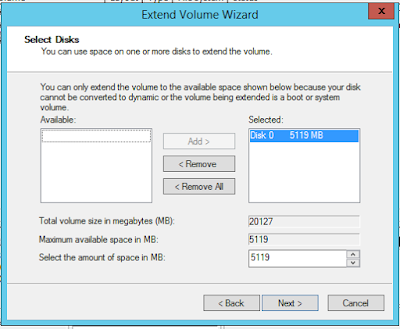
I wanted to set up a lab environment using VirtualBox to test SQL Server 2016. I first started with the installation of Windows Server 2012 R2 and 15GB space configured as dynamic disk. Installation went smooth and I then started the windows update process. After a while I started getting low disk free space and updates failed. Here are the steps I took to extend the disk and screenshots below them.
VirtualBox command to extend the dynamic disk:
vboxmanage modifyhd "pathToYourVHDfile" --resize 20480
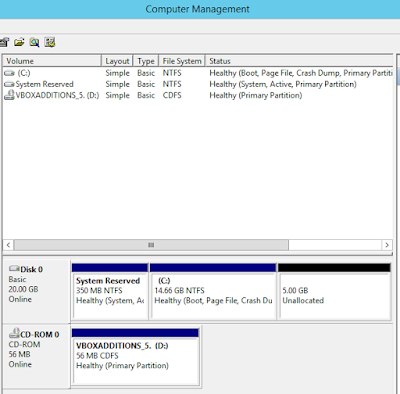
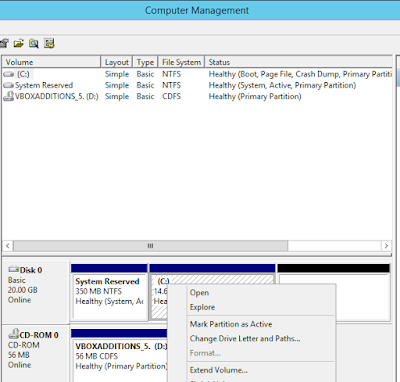
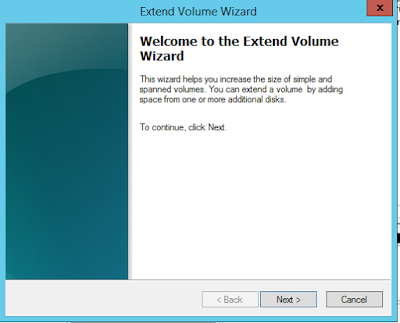
And here are the screenshots.


 HTH,
HTH,
Bulent
- Shutdown the virtual machine that needs additional space
- Open up a command prompt with administrator privileges
- Change your folder path to where VirtualBox is installed
- Type the command above the first screenshot and provide the full path of the virtual disk you want to extend and the size you want to extend the disk to, command provided below extends the dynamic disk to 20GB
- Start the virtual machine and log in to windows
- Open the 'Computer Management' and under the 'Storage' section on the left side of the pane and click on 'Disk Management' and you will see the unallocated space for the disk you just extended using the command in step 4
- Right click on the disk you want want to extend to bring up the context menu where you will see 'Extend Volume' option
- Click on 'Extend Volume'
- This will bring the 'Extend Volume Wizard' and follow the steps in the wizard
VirtualBox command to extend the dynamic disk:
vboxmanage modifyhd "pathToYourVHDfile" --resize 20480
And here are the screenshots.


Bulent
Friday, August 12, 2016
Find Size of the Indexes for Indexed Views
Hello all,
I have several scripts in my tool box to look into the indexes for tables, but did not have one for indexed views. I wanted to share a script that return the size of clustered and non clustered indexes for indexed views if exist in the context of the database where the script is executed.
HTH,
Bulent
SELECT
OBJECT_SCHEMA_NAME(v.object_id) AS 'SchemaName'
, v.NAME AS 'ViewName'
, i.index_id
, i.name AS 'IndexName'
, p.rows AS 'RowCounts'
, SUM(a.total_pages) * 8 AS 'TotalSpaceKB'
, SUM(a.used_pages) * 8 AS 'UsedSpaceKB'
, SUM(a.data_pages) * 8 AS 'DataSpaceKB'
FROM sys.views AS v
INNER JOIN sys.indexes AS i ON v.OBJECT_ID = i.object_id
INNER JOIN sys.partitions AS p ON i.object_id = p.OBJECT_ID AND i.index_id = p.index_id
INNER JOIN sys.allocation_units AS a ON p.partition_id = a.container_id
GROUP BY v.object_id, v.NAME, i.object_id, i.index_id, i.name, p.Rows;
I have several scripts in my tool box to look into the indexes for tables, but did not have one for indexed views. I wanted to share a script that return the size of clustered and non clustered indexes for indexed views if exist in the context of the database where the script is executed.
HTH,
Bulent
SELECT
OBJECT_SCHEMA_NAME(v.object_id) AS 'SchemaName'
, v.NAME AS 'ViewName'
, i.index_id
, i.name AS 'IndexName'
, p.rows AS 'RowCounts'
, SUM(a.total_pages) * 8 AS 'TotalSpaceKB'
, SUM(a.used_pages) * 8 AS 'UsedSpaceKB'
, SUM(a.data_pages) * 8 AS 'DataSpaceKB'
FROM sys.views AS v
INNER JOIN sys.indexes AS i ON v.OBJECT_ID = i.object_id
INNER JOIN sys.partitions AS p ON i.object_id = p.OBJECT_ID AND i.index_id = p.index_id
INNER JOIN sys.allocation_units AS a ON p.partition_id = a.container_id
GROUP BY v.object_id, v.NAME, i.object_id, i.index_id, i.name, p.Rows;
Friday, July 29, 2016
The Principal "dbo" Does Not Exist
The full error message logged in the application log file is:
System.Data.SqlClient.SqlException: Cannot execute as the database principal because the principal "dbo" does not exist, this type of principal cannot be impersonated, or you do not have permission.
I run into the error message after restoring a backup that belongs to a client while trying to reproduce the issues they were having. When a database is restored the ownership of the database is assigned to the account running the restore command but in my case it was not that account. It was actually blank as seen in the database properties screenshot below.

So to fix the issue I run the command 'Alter Authorization On Database' to make a domain account owner of the database (see the screenshot below). In my case the domain account is the SQL Server Service account.

After running the command (see the screenshot below) the database property page shows the domain account as the owner of the database and the error message did not get logged into the application log any longer.

HTH,
Bulent
System.Data.SqlClient.SqlException: Cannot execute as the database principal because the principal "dbo" does not exist, this type of principal cannot be impersonated, or you do not have permission.
I run into the error message after restoring a backup that belongs to a client while trying to reproduce the issues they were having. When a database is restored the ownership of the database is assigned to the account running the restore command but in my case it was not that account. It was actually blank as seen in the database properties screenshot below.

So to fix the issue I run the command 'Alter Authorization On Database' to make a domain account owner of the database (see the screenshot below). In my case the domain account is the SQL Server Service account.
After running the command (see the screenshot below) the database property page shows the domain account as the owner of the database and the error message did not get logged into the application log any longer.

HTH,
Bulent
Tuesday, June 4, 2013
How to Change SQL Server Authentication Mode
Hello all,
I was asked to fix a connectivity problem for SQL Server 2008 deployed to test virtual machine. I was told that nobody was able to connect neither using sql server login nor windows login (neither SA account with generic password nor the local administrator of the windows server)
Since I have seen this in the past and heard about it, I knew what caused this problem. Basically it was the result of not granting access to any log in with right credentials. First thing I tried is to make sure that I am using a log in that has sys admin rights. For this I followed the steps in my earlier blog post (click this link to read that blog). Make sure to use strong password for the sql log in you just created.
Upon restarting SQL Server I attempted to use the new account I just created with no success. I kept getting login failed message. Then I wanted to check the SQL Server error log to see if any error message logged. In my situation I was able to locate the error logs stored at "C:\Program Files\Microsoft SQL Server\MSSQL10.Test01\MSSQL\Log" however in your case it might be different based on installation path and version of the SQL Server. Just by looking at the path you can tell that I am dealing with named instance installation of SQL Server and the name of the instance is 'Test01' and MSSQL10 means it's SQL Server 2008. If you're dealing with another version like SQL 2008 R2 you would see 'MSSQL10_50' and if you're dealing with SQL Server 2012 it would be 'MSSQL11'. And if you're dealing with default instance then instead of 'Test01' you would see 'MSSQLSERVER' in the path.
Anyway, I opened the file named 'errorlog' using notepad and started to scanning the entries. Within seconds I found an error message stating that 'login failed because of server is configured with Windows Authentication mode but the login is sql login'. At this moment I knew that I had to change the authentication mode to 'SQL Server and Windows Authentication mode' to gain access using the sql login I just created.
If you search the Internet you will find how to change the authentication mode during installation or changing the authentication mode using SSMS. However I had no way of connecting to SQL server via SSMS to change the authentication mode. But there is another way that it can be done. Of course this is not documented anywhere in MS knowledge base since it involves registry hacking!!!.
In my case this was a test server and I was OK if I ended up messing up the server and need to rebuilt it. If you're in the same situation and willing to do the same then keep on reading.
Open the command prompt and type "regedit" (without quotation marks) and hit enter. Make sure to backup the registry before making any changes. Then browse to the location for your SQL Server installation on the left pane. In my case it was the named instance of SQL Server which was named 'Test01'.
HKEY_LOCAL_MACHINE\SOFTWARE\Microsoft\Microsoft SQL Server\MSSQL10.Test01\MSSQLServer
And here is the path to default instance:
HKEY_LOCAL_MACHINE\SOFTWARE\Microsoft\Microsoft SQL Server\MSSQL10.MSSQLServer\MSSQLServer
Then on the right pane find "LoginMode" make a right click and click on 'Modify' then finally change the 'Value data' to 2, click ok and exit the registry editor.
Stop the SQL Server service and then restart it. Now your instance authentication mode has been changed to 'SQL Server and Windows Authentication mode' and you can use the sql login that you created to access and configure the server.
HTH,
Bulent
I was asked to fix a connectivity problem for SQL Server 2008 deployed to test virtual machine. I was told that nobody was able to connect neither using sql server login nor windows login (neither SA account with generic password nor the local administrator of the windows server)
Since I have seen this in the past and heard about it, I knew what caused this problem. Basically it was the result of not granting access to any log in with right credentials. First thing I tried is to make sure that I am using a log in that has sys admin rights. For this I followed the steps in my earlier blog post (click this link to read that blog). Make sure to use strong password for the sql log in you just created.
Upon restarting SQL Server I attempted to use the new account I just created with no success. I kept getting login failed message. Then I wanted to check the SQL Server error log to see if any error message logged. In my situation I was able to locate the error logs stored at "C:\Program Files\Microsoft SQL Server\MSSQL10.Test01\MSSQL\Log" however in your case it might be different based on installation path and version of the SQL Server. Just by looking at the path you can tell that I am dealing with named instance installation of SQL Server and the name of the instance is 'Test01' and MSSQL10 means it's SQL Server 2008. If you're dealing with another version like SQL 2008 R2 you would see 'MSSQL10_50' and if you're dealing with SQL Server 2012 it would be 'MSSQL11'. And if you're dealing with default instance then instead of 'Test01' you would see 'MSSQLSERVER' in the path.
Anyway, I opened the file named 'errorlog' using notepad and started to scanning the entries. Within seconds I found an error message stating that 'login failed because of server is configured with Windows Authentication mode but the login is sql login'. At this moment I knew that I had to change the authentication mode to 'SQL Server and Windows Authentication mode' to gain access using the sql login I just created.
If you search the Internet you will find how to change the authentication mode during installation or changing the authentication mode using SSMS. However I had no way of connecting to SQL server via SSMS to change the authentication mode. But there is another way that it can be done. Of course this is not documented anywhere in MS knowledge base since it involves registry hacking!!!.
In my case this was a test server and I was OK if I ended up messing up the server and need to rebuilt it. If you're in the same situation and willing to do the same then keep on reading.
Open the command prompt and type "regedit" (without quotation marks) and hit enter. Make sure to backup the registry before making any changes. Then browse to the location for your SQL Server installation on the left pane. In my case it was the named instance of SQL Server which was named 'Test01'.
HKEY_LOCAL_MACHINE\SOFTWARE\Microsoft\Microsoft SQL Server\MSSQL10.Test01\MSSQLServer
And here is the path to default instance:
HKEY_LOCAL_MACHINE\SOFTWARE\Microsoft\Microsoft SQL Server\MSSQL10.MSSQLServer\MSSQLServer
Then on the right pane find "LoginMode" make a right click and click on 'Modify' then finally change the 'Value data' to 2, click ok and exit the registry editor.
Stop the SQL Server service and then restart it. Now your instance authentication mode has been changed to 'SQL Server and Windows Authentication mode' and you can use the sql login that you created to access and configure the server.
HTH,
Bulent
Friday, May 3, 2013
70-462 Administrating Microsoft SQL Server 2012 Databases
Hi all,
After being quite some time and studying for exam 70-462 I would like to tell you that I passed the exam on my first attempt. I say first because I started studying while back and things at work prevented me to allocate more time during the week and I slacked over the weekends. And before I ran out of time to take advantage of free second shot promotion I said just cram for several weeks and take the exam and if failed schedule the second shot free and study harder.
I used the book from Microsoft Press to study and set up a lab environment. I have to say it was a good book to use and helpful to learn the new features. The CD has the sample exam to test your knowledge of the material just covered in the book. It also has the study mode as well. The questions in the CD exam as far as I remember were close to real exam questions. The exam tests the knowledge of the steps to execute to properly implement something as well as writing administrative type of T-SQL statements.
For somebody with no prior experience the book is not enough to pass the exam. However, I have been certified in SQL Server 2008 and working with SQL Server almost 7 years when I started the real exam I thought the questions were not as hard as I expected.
I definitely recommend everybody to study and take the exam since it shows an initiative on professional development. I am sure we can argue about the credibility and if certification count for experience. I think that it definitely does not count for the experience but just a reminder of one's professional development and willing to learn the product.
Regards,
Bulent
After being quite some time and studying for exam 70-462 I would like to tell you that I passed the exam on my first attempt. I say first because I started studying while back and things at work prevented me to allocate more time during the week and I slacked over the weekends. And before I ran out of time to take advantage of free second shot promotion I said just cram for several weeks and take the exam and if failed schedule the second shot free and study harder.
I used the book from Microsoft Press to study and set up a lab environment. I have to say it was a good book to use and helpful to learn the new features. The CD has the sample exam to test your knowledge of the material just covered in the book. It also has the study mode as well. The questions in the CD exam as far as I remember were close to real exam questions. The exam tests the knowledge of the steps to execute to properly implement something as well as writing administrative type of T-SQL statements.
For somebody with no prior experience the book is not enough to pass the exam. However, I have been certified in SQL Server 2008 and working with SQL Server almost 7 years when I started the real exam I thought the questions were not as hard as I expected.
I definitely recommend everybody to study and take the exam since it shows an initiative on professional development. I am sure we can argue about the credibility and if certification count for experience. I think that it definitely does not count for the experience but just a reminder of one's professional development and willing to learn the product.
Regards,
Bulent
Thursday, March 21, 2013
SSIS Error 'Microsoft.ACE.OLEDB.12.0' Provider Is Not Registered

The error message was 'The 'Microsoft.ACE.OLEDB.12.0' provider is not registered on the local machine' when I wanted to access the sheet to see the first 200 records coming from excel file. And when click on the columns to read the column names we got another error message which also mentions that the provider is not registered on the local machine.
Our image had 64 bit of SQL Server installed but the BIDS application is 32 bit and did not have the 64 bit driver installed for Excel so we keep getting the error.
Solution for the problem was Microsoft. MS has a 64 bit ACE driver released which can be downloaded and installed from this link. We have downloaded and installed AccessDatabaseEngine and opened the BIDS and SSIS package then I was able to read the data from spread sheet and get the column mappings.
HTH,
Bulent
Wednesday, October 24, 2012
Install .NET Framework 3.5.1 using Powershell
Hi there,
I started to study SQL Server 2012 to take certification exam and I was setting up a lab environment. In one of the steps the exercise was to install .NET Framework 3.5.1 using powershell. .NET Framework 3.5.1 is prereq for SQL Server 2012.
To be able to install .NET Framework the I needed to start the session elevated to administrator and then execute the powershell commands. To accomplish this I took the following steps:

HTH,
Bulent
I started to study SQL Server 2012 to take certification exam and I was setting up a lab environment. In one of the steps the exercise was to install .NET Framework 3.5.1 using powershell. .NET Framework 3.5.1 is prereq for SQL Server 2012.
To be able to install .NET Framework the I needed to start the session elevated to administrator and then execute the powershell commands. To accomplish this I took the following steps:
- Right click the powershell icon on the taskbar and click on 'Run As Administrator'.
- In the powershell window type this command 'Import-Module ServerManager' then hit enter to execute (exclude the single tick before the Import and after the ServerManager)
- execute the command 'add-windowsfeature net-framework-core' and hit enter (leave out the single ticks around the command)

HTH,
Bulent
Tuesday, September 25, 2012
PowerShell ExecutionPolicy Access Denied To The Registry Key
Hi all,

I recently accepted an employment offer and now working in Downtown Denver. Anyhow, I was given a laptop as my workstation. Since it was a brand new built laptop not everything I needed was installed so I started installing/configuring the software. One point in time I need to start scripting and I opened the power shell window. First thing I checked to see the execution policy setting for my new built laptop. By default a new installation is set to 'Restricted' which does not allow to run a powershell scripts and PowerShell can only be used in interactive mode. Which is what I expected. So I started to configure the execution policy. Here are the steps for how to do it.
Open powershell by clicking start>run and typing 'powershell' (without the ticks) then hit enter. This will open powershell scripting environment.
1. Type 'Get-ExecutionPolicy' and hit enter, this will return the execution policy setting. There are 4 available options and I need to set the execution policy to 'RemoteSigned' to be able to run the scripts I have created and some downloaded from trusted sources. Here is the link to Microsoft that talks about the policy settings.
In my case, it was set to 'Restricted'
2. Type 'Set-ExecutionPolicy RemoteSigned' and hit enter. This is where I got an error message stating that access to the registry key 'HKEY_LOCAL_MACHINE\SOFTWARE\Microsoft\PowerShell\1\ShellIds\Microsfot.PowerShell' is denied. So when this command is executed it tries to set the execution policy for the local machine for all the users. In my case I only need to set it for my user account not whole machine for all users.
3. Type 'Set-ExecutionPolicy RemoteSigned -Scope CurrentUser' and hit enter. No errors.
4. Type 'Get-ExecutionPolicy' and hit enter and I got 'RemoteSigned' back as the configure setting.
Now I can execute powershell scripts from SQL Server Agent job to do what I need. All of the above steps have been captured in the screen shot below.
HTH,
Bulent

Thursday, July 26, 2012
VirtualBox Cannot Register The Hard Disk (UUID Already Exists)
I have been using Virtual Box to test some software on a virtual machine as opposed to running the tests on my workstation. Everything has been working fine while I have a single virtual machine but I had to create a new virtual machine to do some more testing.
I wanted to use the existing virtual machine and not have to install it all over again. So I copied the folder where my Virtual Machine is stored to another folder. Then opened the VirtualBox and started to create a new virtual machine and pointed it to the new folder where I copied the contents of the folder for the first Virtual Machine and that's when I got the following error.

Then I started searching the Internet because I knew that the solution must have been available. I came to find the solution and here is the simple fix for the problem. We need to open a command prompt and run a command to reset the uuid for the .vdi file where we copied to initiate the second virtual machine. Here is the steps that need to be done.
1. Start command prompt (I recommend running it as administrator).
2. Change your directory to VirtualBox folder. In my case I am running x64 OS so changed my directory to "C:\Program Files\Oracle\VirtualBox\"
3. Execute the command to reset the uuid.
VBOXMANAGE.EXE internalcommands sethduuid <PathOfNewVDI>
The screen shot below is from my workstation which reset the uuid and then I moved on with the VirtualBox and created the new virtual machine. So in minutes we have a new vm running to do the test. Simple and fast as long as you know the solution.

HTH,
Bulent
I wanted to use the existing virtual machine and not have to install it all over again. So I copied the folder where my Virtual Machine is stored to another folder. Then opened the VirtualBox and started to create a new virtual machine and pointed it to the new folder where I copied the contents of the folder for the first Virtual Machine and that's when I got the following error.
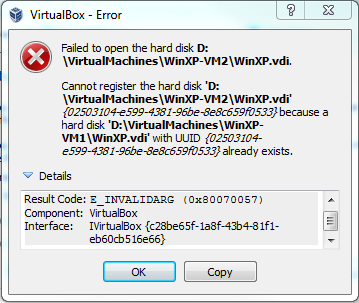
Then I started searching the Internet because I knew that the solution must have been available. I came to find the solution and here is the simple fix for the problem. We need to open a command prompt and run a command to reset the uuid for the .vdi file where we copied to initiate the second virtual machine. Here is the steps that need to be done.
1. Start command prompt (I recommend running it as administrator).
2. Change your directory to VirtualBox folder. In my case I am running x64 OS so changed my directory to "C:\Program Files\Oracle\VirtualBox\"
3. Execute the command to reset the uuid.
VBOXMANAGE.EXE internalcommands sethduuid <PathOfNewVDI>
The screen shot below is from my workstation which reset the uuid and then I moved on with the VirtualBox and created the new virtual machine. So in minutes we have a new vm running to do the test. Simple and fast as long as you know the solution.

HTH,
Bulent
Monday, July 2, 2012
SQL Server Create Identity Field Using Select Into
While working on some data issue I needed to create a backup table on the fly using SELECT INTO statement. I knew that it was possible but never did it my self. So it's as simple as defining a column as identity with the data type in the select statement. Below is statement shows how it's done.
SELECT IDENTITY(INT,1,1) AS RowID,
*
INTO dbo.MyTable_Backup
FROM dbo.MyTable
Hope this helps,
Bulent
SELECT IDENTITY(INT,1,1) AS RowID,
*
INTO dbo.MyTable_Backup
FROM dbo.MyTable
Hope this helps,
Bulent
Monday, February 20, 2012
Compressing SQL Server Backup Files
Hello Database Professionals,
Starting with SQL Server 2008 Enterprise Edition we have the option of compressing backup files (this includes both BACKUP DATABASE and BACKUP LOG statements which mean not only database backups but log file backups will be compressed) to save disk space and also decrease the duration of the backup and restore operations. The backup compression was an enterprise edition only feature with SQL Server 2008 but with SQL Server 2008 R2 this feature is supported by standard and higher editions. So that was welcome news for me since I support number of SQL Server 2008 R2 Standard Edition.
Starting with SQL Server 2008 Enterprise Edition we have the option of compressing backup files (this includes both BACKUP DATABASE and BACKUP LOG statements which mean not only database backups but log file backups will be compressed) to save disk space and also decrease the duration of the backup and restore operations. The backup compression was an enterprise edition only feature with SQL Server 2008 but with SQL Server 2008 R2 this feature is supported by standard and higher editions. So that was welcome news for me since I support number of SQL Server 2008 R2 Standard Edition.
I have been using T-SQL script to backup databases. The script checks the edition of the SQL Server and then builds the backup command to compress the backup file if it’s enterprise edition or just backups the database if it was a standard edition.
Before the end of 2011 I have completed deploying/upgrading to SQL Server 2008 R2. That meant that my script no longer needed to check the edition of SQL Server 2008 R2 since the compression is already supported in standard and higher editions. So I turned to global configurations and enable the backup compressions. I would like to remind the readers that enabling the backup compression creates additional CPU overhead which depends on you workload might impact your server performance. I suggest that you test your backup process and if necessary using Resource Governor (this is Enterprise Edition only feature) create a low priority compressed backup in a session whose CPU usage is limited by Resource Governor when CPU contention occurs.
Let’s start with checking the backup compression setting for the server by using the script below.
USE master
SELECT *
FROM sys.configurations
WHERE name = 'backup compression default'
ORDER BY name
Let’s check the returned result for the value_in_use column. This shows us the running value curently in effect for this option and is_dynamic column tells us the changes take effect after the RECONFIGURE statement executed. Now it’s time to execute the below script to enable the backup compression since the value_in_use is 0 for the server I am currently working.
USE master
EXEC SP_CONFIGURE 'backup compression default',1
RECONFIGURE
Let’s check the value_in_use by executing the first select statement.
USE master
SELECT *
FROM sys.configurations
WHERE name = 'backup compression default'
Now we should see that the value_in_use is 1 and we don’t need to use the optional keyword COMPRESSION in the backup database command.
By default when backup is compressed checksums are performed to detect media corruptions but if for any reason you need, you can explicitly disable the compression by using NO_COMPRESSION keyword in your backup statement.
I have seen anywhere from 35% to 80% compression ration and backup duration decrease from several hours to 30-45 minutes for the databases I administor. Your mileage will vary and you should TEST, TEST, TEST and deploy your changes for your environments. Here is the link to find out more about backup database command in MSDN.
HTH,
Bulent
Friday, February 3, 2012
Dropping Multiple SQL Server Objects in Single Line
As humans we try to find a way to work faster and efficient. As data professionals, typing less probably is another thing we want. My SQL Server tip today is about dropping multiple objects (tables, views, stored procedures, and even databases) in single drop statement. This is powerful but can be dangerous in production so please use caution. Here is a script that creates couple of tables and then drops both tables in single drop statement.
Sincerely,
Bulent
-- CREATE TABLES
USE tempdb
GO
CREATE TABLE dbo.TableT1 (t1c1 TINYINT)
CREATE TABLE dbo.TableT2 (t2c1 TINYINT)
GO
INSERT INTO dbo.TableT1 VALUES(1)
INSERT INTO dbo.TableT2 VALUES(2)
GO
-- CHECK THE TABLES CREATED
SELECT *
FROM sys.tables
WHERE name LIKE 'TableT_'
GO
-- DROP BOTH TABLES IN SINGLE DROP STATEMENT
DROP TABLE dbo.TableT1, dbo.TableT2
GO
-- CHECK THE TABLES DROPPED
SELECT *
FROM sys.tables
WHERE name LIKE 'TableT_'
GO
Friday, January 27, 2012
Cycling SQL Server Error Log
I have a daily check list that I go through everyday. And checking the SQL Server error log is one item on the list. Depends on how your server is configured SQL Server logs informational and error messages to the log file. By default your server is configured to have 6 log files that it keeps and when the SQL Server Service starts it removes the oldest log file. In the meantime if your server is up for a long time the information in that log file just keeps growing and makes the log file hard to open from remote workstation.
In the environments that I support I change the configuration so that I keep more than 6 files. I set up to store 99 files (which is the max allowed files for the SQL Server error log). Then I create a job that runs every night right after midnight. This way when I come in every morning there is a brand new log file and since the daily log files are much smaller it makes the file easy to open and check. I use the script below to change the number of log files (note you can do this using SSMS GUI and just make a right click on SQL Server Logs under Management folder than click on Configure and change the value to what you need). After the change using second script I create SQL Server Agent Job that is scheduled to run right after midnight to cycle the error log. This make the daily task of checking the error logs easier (at least for me). Use the scripts below in a test environment and once you find out it could add some value to your daily tasks you could use it in your production environment.
HTH,
Bulent
Script 1:
This changes the number of log files stored to a value you set at the end and uses extended stored procedure to update the registry. Remember this can be done through GUI but it does executed the same in the background.
Script 2:
This script creates a job (make sure you sql server agent is running) and schedules it to run at 12:00:01 am everyday.
GO
In the environments that I support I change the configuration so that I keep more than 6 files. I set up to store 99 files (which is the max allowed files for the SQL Server error log). Then I create a job that runs every night right after midnight. This way when I come in every morning there is a brand new log file and since the daily log files are much smaller it makes the file easy to open and check. I use the script below to change the number of log files (note you can do this using SSMS GUI and just make a right click on SQL Server Logs under Management folder than click on Configure and change the value to what you need). After the change using second script I create SQL Server Agent Job that is scheduled to run right after midnight to cycle the error log. This make the daily task of checking the error logs easier (at least for me). Use the scripts below in a test environment and once you find out it could add some value to your daily tasks you could use it in your production environment.
HTH,
Bulent
Script 1:
This changes the number of log files stored to a value you set at the end and uses extended stored procedure to update the registry. Remember this can be done through GUI but it does executed the same in the background.
USE [master]
GO
EXEC xp_instance_regwrite N'HKEY_LOCAL_MACHINE', N'Software\Microsoft\
GOScript 2:
This script creates a job (make sure you sql server agent is running) and schedules it to run at 12:00:01 am everyday.
USE [msdb]
GO
/****** Object: Job [A DBA SQL Server Error Log Cycle] Script Date: 01/27/2012 14:01:38 ******/
BEGIN TRANSACTION
DECLARE @ReturnCode INT
SELECT @ReturnCode = 0
/****** Object: JobCategory [Database Maintenance] Script Date: 01/27/2012 14:01:38 ******/
IF NOT EXISTS (SELECT name FROM msdb.dbo.syscategories WHERE name=N'Database Maintenance' AND category_class=1)
BEGIN
EXEC @ReturnCode = msdb.dbo.sp_add_category @class=N'JOB', @type=N'LOCAL', @name=N'Database Maintenance'
IF (@@ERROR <> 0 OR @ReturnCode <> 0) GOTO QuitWithRollback
END
DECLARE @jobId BINARY(16)
EXEC @ReturnCode = msdb.dbo.sp_add_job @job_name=N'A DBA SQL Server Error Log Cycle',
@enabled=1,
@notify_level_eventlog=2,
@notify_level_email=0,
@notify_level_netsend=0,
@notify_level_page=0,
@delete_level=0,
@description=N'Cycle sql serve error log and create a new error log file',
@category_name=N'Database Maintenance',
@owner_login_name=N'sa', @job_id = @jobId OUTPUT
IF (@@ERROR <> 0 OR @ReturnCode <> 0) GOTO QuitWithRollback
/****** Object: Step [Cycle Error Log] Script Date: 01/27/2012 14:01:38 ******/
EXEC @ReturnCode = msdb.dbo.sp_add_jobstep @job_id=@jobId, @step_name=N'Cycle Error Log',
@step_id=1,
@cmdexec_success_code=0,
@on_success_action=1,
@on_success_step_id=0,
@on_fail_action=2,
@on_fail_step_id=0,
@retry_attempts=0,
@retry_interval=0,
@os_run_priority=0, @subsystem=N'TSQL',
@command=N'EXEC sp_cycle_errorlog ;
',
@database_name=N'master',
@flags=0
IF (@@ERROR <> 0 OR @ReturnCode <> 0) GOTO QuitWithRollback
EXEC @ReturnCode = msdb.dbo.sp_update_job @job_id = @jobId, @start_step_id = 1
IF (@@ERROR <> 0 OR @ReturnCode <> 0) GOTO QuitWithRollback
EXEC @ReturnCode = msdb.dbo.sp_add_jobschedule @job_id=@jobId, @name=N'Cycle Error Log',
@enabled=1,
@freq_type=4,
@freq_interval=1,
@freq_subday_type=1,
@freq_subday_interval=0,
@freq_relative_interval=0,
@freq_recurrence_factor=0,
@active_start_date=20111013,
@active_end_date=99991231,
@active_start_time=1,
@active_end_time=235959
IF (@@ERROR <> 0 OR @ReturnCode <> 0) GOTO QuitWithRollback
EXEC @ReturnCode = msdb.dbo.sp_add_jobserver @job_id = @jobId, @server_name = N'(local)'
IF (@@ERROR <> 0 OR @ReturnCode <> 0) GOTO QuitWithRollback
COMMIT TRANSACTION
GOTO EndSave
QuitWithRollback:
IF (@@TRANCOUNT > 0) ROLLBACK TRANSACTION
EndSave:
Friday, January 20, 2012
SSRS 2008 Transport Error Code 0x800ccc15
Hello all,
I received and email stating that a user did not receive the report from SSRS that he was subscribed to in the last couple of days. When I start looking into the report in the subscription tab of the report I saw the message below.
Failure sending mail: The message could not be sent to the SMTP server. The transport error code was 0x800ccc15. The server response was not available
I tried to open the report and had no problem running the report manually. Then I update the schedule of the report to see if the scheduled sql server agent job is updated as well. Then I looked at the jobs in the server hosting ReportServer database and found the corresponding job with that timed subscription and verified that the execution time of the job is updated with what I did using SSRS portal (In the SQL Server Agent Jobs the name of the jobs for SSRS are given using a system generated GUID and if you don't know the job it's hard to locate since there may be many of them, in my case there were only 8 jobs and I knew which job I need to check once I made the change. However in future blog I will post about this in little more detail). I waited for couple of minutes and saw that the job executed in SQL Server Agent hosting ReportServer database. However still saw the same error message.
I remote into the SSRS server to look into to the problem locally. As soon as I logged in I saw a red icon on the task bar coming from McAfee. I remember that I had to change the configuration of the McAfee to allow database mail to work couple weeks ago. I opened the log and found that the log event below.
1/19/2012 2:30:30 PM Blocked by port blocking rule C:\Program Files\Microsoft SQL Server\MSRS10_50.MSSQLSERVER\Reporting Services\ReportServer\bin\ReportingServicesService.exe Anti-virus Standard Protection:Prevent mass mailing worms from sending mail 192.168.162.162:250
That is when I knew what was wrong. The McAfee ePO policy change forced to server so that processes that need to send email has to be excluded in the Prevent Mass Mailing Worms section. I talked to sysadmin who administers the ePO policy to exclude the ReportingServicesService.exe and push the policy again to the server. Within a minute policy was in effect. I update the report subscription to 3 minutes later and waited for the mail to arrive with the report attached. After 3 minutes voila, I received the email and solved the problem. In my case it was as simple as adding the process to exclusion list to send SMTP emails.
HTH,
Bulent
I received and email stating that a user did not receive the report from SSRS that he was subscribed to in the last couple of days. When I start looking into the report in the subscription tab of the report I saw the message below.
Failure sending mail: The message could not be sent to the SMTP server. The transport error code was 0x800ccc15. The server response was not available
I tried to open the report and had no problem running the report manually. Then I update the schedule of the report to see if the scheduled sql server agent job is updated as well. Then I looked at the jobs in the server hosting ReportServer database and found the corresponding job with that timed subscription and verified that the execution time of the job is updated with what I did using SSRS portal (In the SQL Server Agent Jobs the name of the jobs for SSRS are given using a system generated GUID and if you don't know the job it's hard to locate since there may be many of them, in my case there were only 8 jobs and I knew which job I need to check once I made the change. However in future blog I will post about this in little more detail). I waited for couple of minutes and saw that the job executed in SQL Server Agent hosting ReportServer database. However still saw the same error message.
I remote into the SSRS server to look into to the problem locally. As soon as I logged in I saw a red icon on the task bar coming from McAfee. I remember that I had to change the configuration of the McAfee to allow database mail to work couple weeks ago. I opened the log and found that the log event below.
1/19/2012 2:30:30 PM Blocked by port blocking rule C:\Program Files\Microsoft SQL Server\MSRS10_50.MSSQLSERVER\Reporting Services\ReportServer\bin\ReportingServicesService.exe Anti-virus Standard Protection:Prevent mass mailing worms from sending mail 192.168.162.162:250
That is when I knew what was wrong. The McAfee ePO policy change forced to server so that processes that need to send email has to be excluded in the Prevent Mass Mailing Worms section. I talked to sysadmin who administers the ePO policy to exclude the ReportingServicesService.exe and push the policy again to the server. Within a minute policy was in effect. I update the report subscription to 3 minutes later and waited for the mail to arrive with the report attached. After 3 minutes voila, I received the email and solved the problem. In my case it was as simple as adding the process to exclusion list to send SMTP emails.
HTH,
Bulent
Thursday, January 12, 2012
SQL Function QUOTENAME()
Hello all,
I support third party software databases at work. During the implementation of the application it needed to create a database to store the data. However the application created a database with a name that does not follow the rules for the format of identifiers. In my case we ended up with a database name '20120101_Survey'.
On the same server I have a custom built script that backups up all the databases at night. However, following the database creation my backup process failed and I got an alert about the process. Further looking into the problem I found out that there was a problem with the syntax. As soon as I see the statement I knew what the problem was but never thought about it while deploying the application and database. To keep the story short I used the SQL Server function called QUOTENAME() to fix the problem. Using the function in my custom script help me return the database names with delimiters so that backup process completes without error. Since then I have been using the function with all the object names. This simple function can prevent some headaches if a DBA needs to support 3rd party databases (SharePoint is also a good example because the SharePoint database names don't follow the rules of the identifier format). Here is the link to the msdn and below is simple statement that returns all the databases in your system with delimiters.
SELECT QUOTENAME(name) AS DelimitedDbName
FROM sys.databases
HTH,
Bulent

Subscribe to:
Posts (Atom)
